
Follow your applications by stage on a board
The board is the third view of the Applications page: open it with the "Board" button next to List and Company. It shows the applications and saved postings you want to keep in front of you in columns by stage; you move cards by dragging and put them in your own order. The board is yours: you decide what is on it and in what order, and you find it as you left it next time.
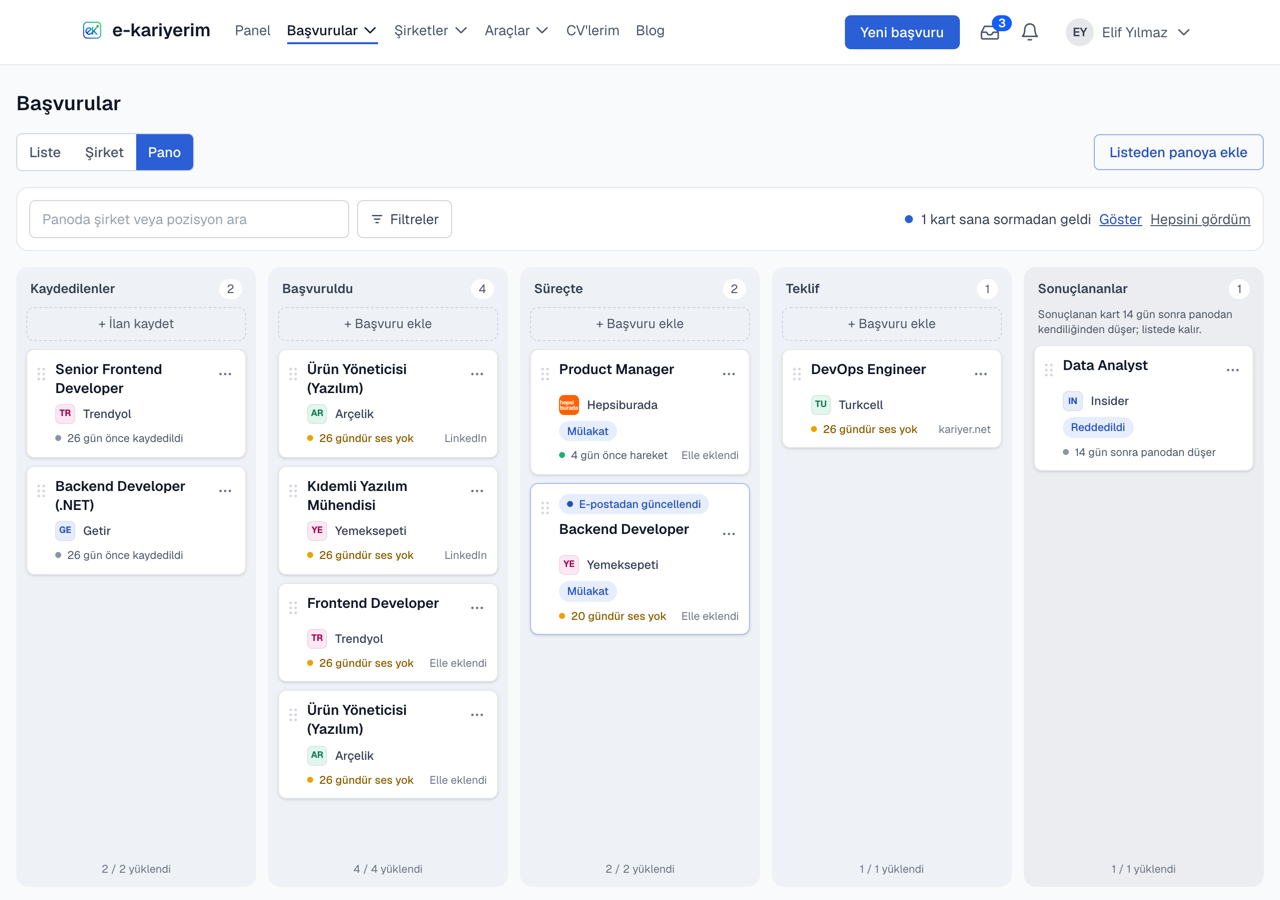
Columns
A card's column is decided by the application's status, so the board and the list can never disagree. Moving a card to another column changes the application's status.
- 1
Saved
Postings you have not applied to yet, saved with "Apply later" or from your tracked jobs.
- 2
Applied
Applications sent and not answered yet.
- 3
In progress
Screening and interviews; the exact stage is written on a small label on the card.
- 4
Offer
Applications you got an offer for.
- 5
Closed
Accepted, rejected, withdrawn or never answered. A card stays here for 14 days, then leaves the board by itself; it stays in the list.
When you first open the board
The first time you open the board, your open applications with activity in the last 30 days, and the postings you saved in that time, are put on it. Older applications stay in the list; bring any of them over with "Add from list". Each column shows 10 cards at first and loads 10 more as you scroll down.
Moving and ordering cards
- 1
Drag and drop
Drag a card up or down within its column to put it in your own order; the order is kept. Dropping it in another column changes the application's status and records it in the status history.
- 2
Pick the stage
In progress and Closed each hold several stages, so a card dropped there asks which one it moves to (e.g. Technical interview, Rejected). A saved posting dropped in an application column becomes an application; an application cannot go back to Saved.
- 3
Or use the card's ⋯ menu
Open the application, change its stage, move it to the top of its column or remove it from the board. Everything a drag can do, the menu can do too.
- 4
With the keyboard
Focus the handle on the left of a card and press Space or Enter to pick it up, move it with the arrow keys, and press Space or Enter again to drop it; Escape cancels the move.
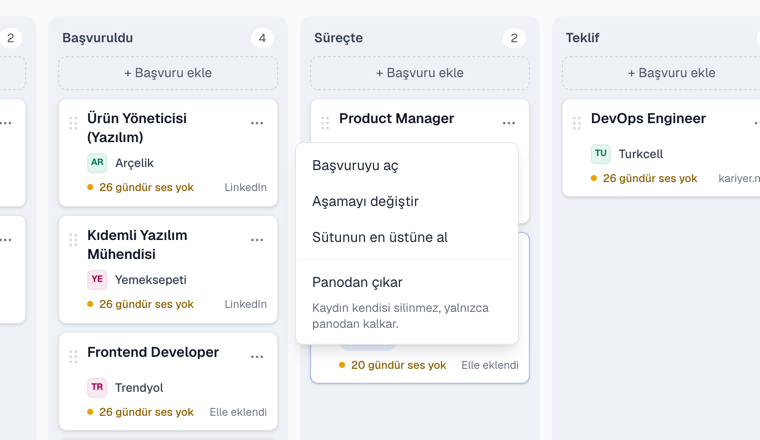
Adding to and removing from the board
"Add from list" lists your applications that are not on the board; the ones you pick go to the top of their stage's column. A column's "+ Add an application" opens the new-application form in that column's stage and brings you back to the board when you save. "Remove from board" in a card's ⋯ menu removes only the card; the application or saved posting is not deleted and stays in the list. In the list, applications on the board carry an "On board" label.
Cards that arrive by themselves
Some cards come onto the board without you adding them. They carry a label saying where they came from until you look at them; the strip at the top counts them, "Show" lists only them and "Mark all seen" clears the labels. Touching a card (opening or moving it) clears its label too.
- 1
From the Chrome extension
A posting you mark "I applied" arrives at the top of Applied; one you mark "Apply later" at the top of Saved.
- 2
From email
A status change from Gmail scanning that you confirm (or that is applied automatically) moves the card on the board to the top of its new column.
- 3
For an application you removed
Only an email bringing progress (screening, interview or an offer) brings the card back. A rejection or silence does not return a card you removed; the application's status is still updated in the list.
The line at the bottom of a card
- 1
Last activity
Time since the application last moved: a green dot within 7 days, amber past 14 days, red past 30. It counts from the last activity, not the application date, so an old application that heard back yesterday is not silent.
- 2
Source
The site the posting came from (LinkedIn, kariyer.net, another site), or that it was added by hand.
- 3
In Closed
How many days until the card leaves the board.
Filters and saved views
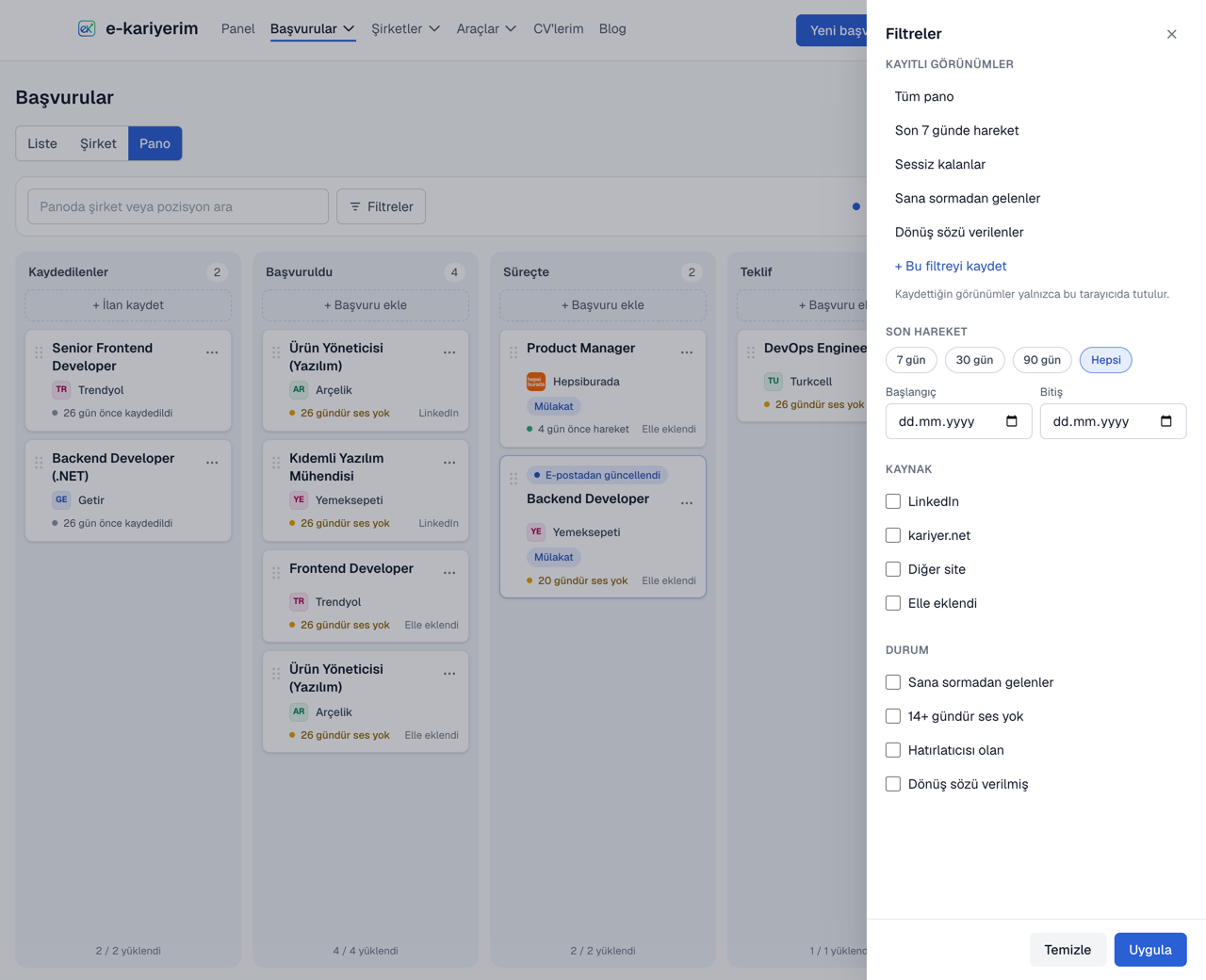
The search box searches company names and job titles. The "Filters" panel lets you pick last activity (7, 30, 90 days or a date range), source and state ("Arrived without you", "No reply for 14+ days", "Has a reminder", "Reply date promised"). The filter you pick is written to the address bar, so a reload or a saved link opens the same view. Save a filter you use often by naming it with "Save this filter"; saved views are kept in that browser only.
On a phone
On narrow screens the columns are shown one at a time behind stage tabs at the top instead of side by side. Press and hold a card to drag it into a new place in its column; scrolling the list with your finger does not move cards. To move a card to another stage, use "Change stage" in its ⋯ menu.
Company logos
Filters do not change the board