
Candidate experience
What a company's hiring process is like from the candidate's side — anonymous ratings from people who went through it, and the ready-made statements they picked. You don't need to have worked there; reading is public, writing needs an account.
Reading candidate experiences
- 1
Open the Candidate experience tab on a company page
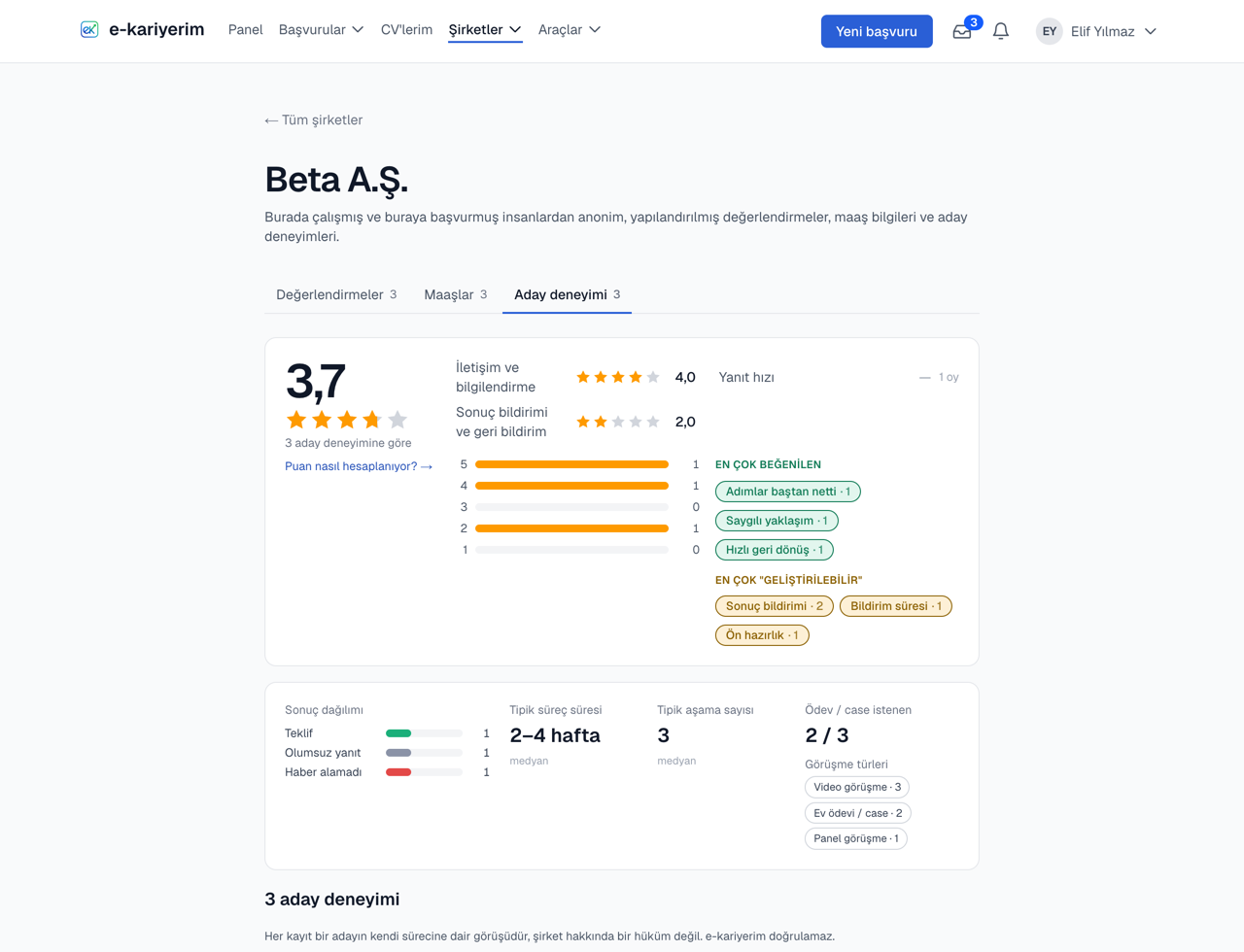
The tab is public. On top: the overall score, the area averages, the rating distribution and the most-picked statements; below: the process statistics — outcomes, the typical length and number of stages, how many processes asked for an assignment.
- 2
Read the cards
Each card is one candidate's own process: the overall rating, the areas they rated, the statements they picked and short tags such as the outcome, length and number of stages. The date is a quarter; there is no job title, month or interviewer name.
- 3
Know the threshold
The score, the area averages and the process statistics appear once a company has at least three entries; until then only the count and the cards are shown. "Typical" values are medians.
Sharing an experience
- 1
Open the contribute page
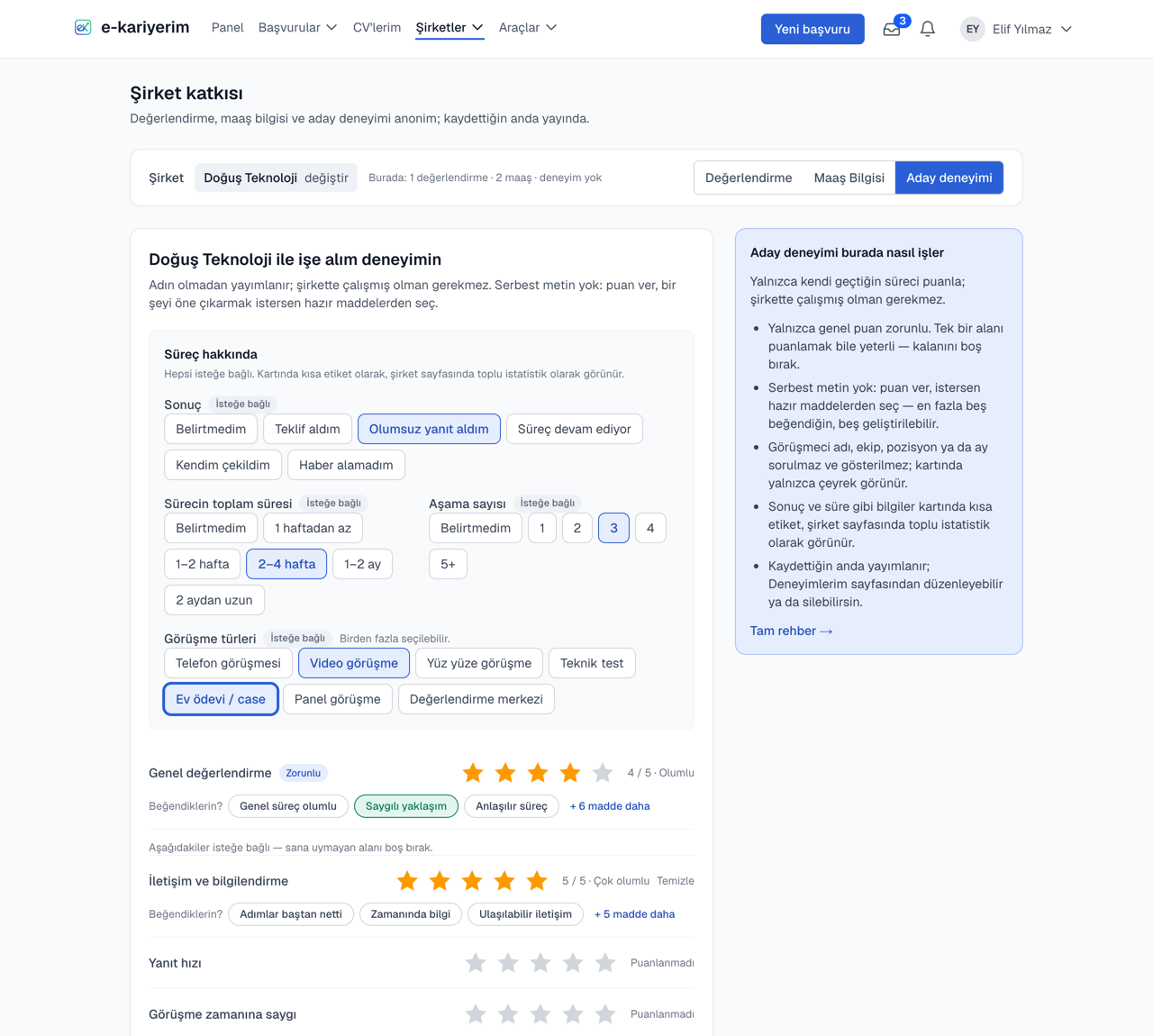
Companies ▾ → Share an experience in the top menu, or the "Share your experience" button on a company page. Reviews and salaries are shared on the same page; switch between them with the control at the top.
- 2
Pick the company
The company is picked once and applies to every form. If yours is not there, type its name to add it.
- 3
Fill in the form
Only the overall rating is required. If you like, answer a few closed questions about the process (outcome, length, number of stages, interview types), rate the eight areas and pick ready-made statements for the areas you rated — up to five you liked, five that could be better. There is no free text.
- 4
Publish
The entry is published the moment you save. You are then invited to leave a review or share a salary for the same company; you can skip.
The invitation on your dashboard
When one of your applications ends in a rejection, closes without a reply, or you accept the offer, four weeks later the "Your ended processes" card on your dashboard invites you to rate that company. The four weeks are there so a rating cannot be matched to the week the process ended. The card holds at most three companies; one you rate or dismiss with × leaves and is not asked about again. An application you withdrew yourself brings no invitation. While you are on a break from reminders, the card stays hidden too.
The "Tracked application" label
This label next to an entry says its author started tracking their application to that company on e-kariyerim at least 14 days before writing. It does not verify the entry and does not show which application it is. The 14 days are there so an application added just before writing does not earn the label — which is why the moment the application was added to e-kariyerim counts, not the applied date you entered. Your own entries show whether they carry it on the My contributions page.
Entries are anonymous
One entry per company, 100 in total
Managing your entries
On My contributions you see, edit or delete your entries on the same list as your reviews and salary entries. They are deleted with your account and included in your data export.