
Bring in your LinkedIn history in bulk
Right now the only import method is LinkedIn's own data export file (a .zip). There's no separate CSV uploader. Most of the work happens on LinkedIn's side; the steps below walk you through it end to end.
Step-by-step import
- 1
Request your data export from LinkedIn — pick "Jobs" only
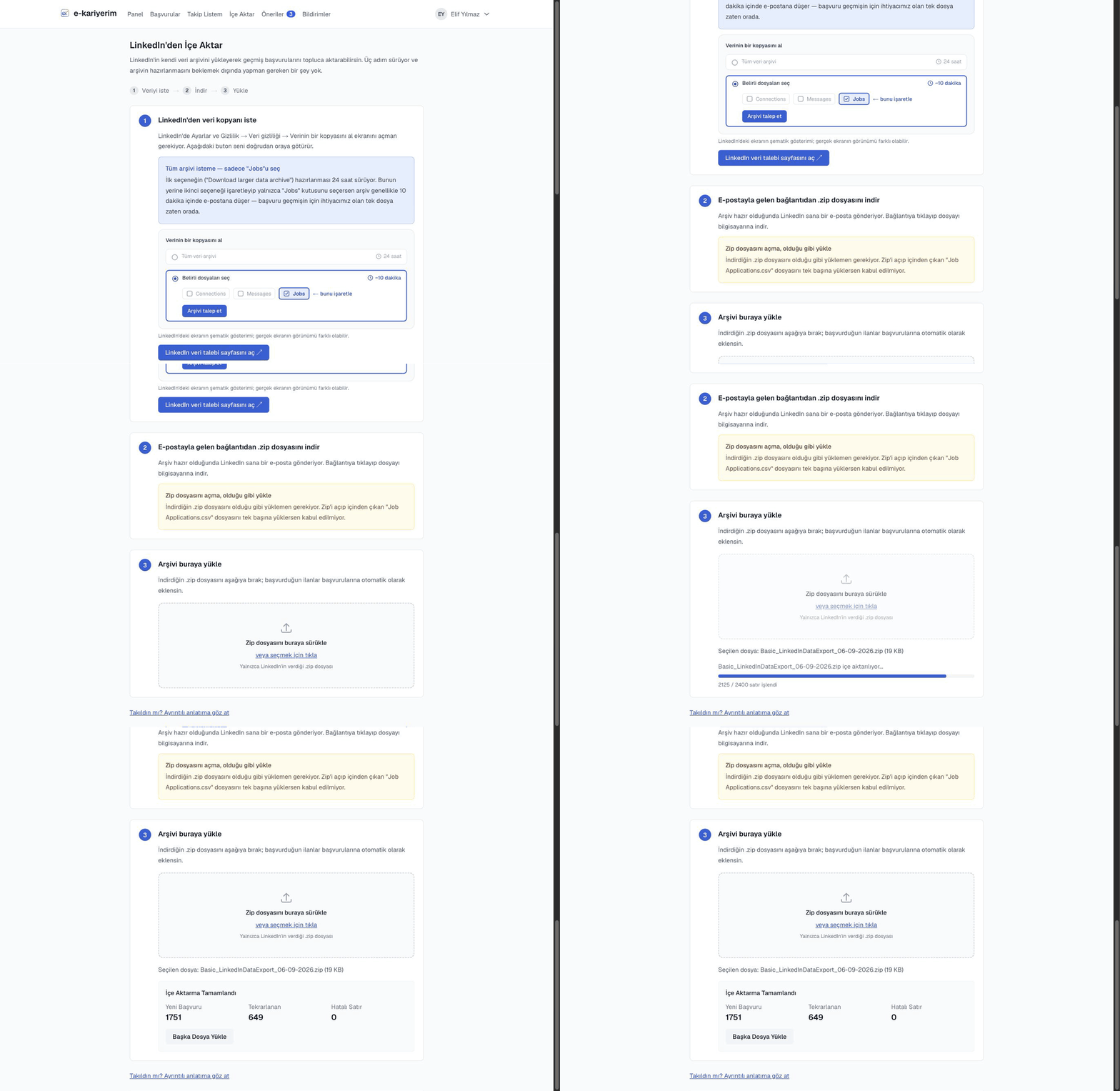
On LinkedIn, open Settings & Privacy → Data privacy → Get a copy of your data. "Download larger data archive" takes 24 hours to prepare; choose the second option instead and tick only the "Jobs" box, and the archive usually arrives by email within 10 minutes. The "Job Applications.csv" we need for your application history is already in that selection.
Get a copy of your data
Larger data archive24 hoursPick specific files~10 minutesConnectionsMessagesJobstick this oneRequest archiveA schematic of the LinkedIn screen; the real one may look different. - 2
Download the .zip from the link LinkedIn emails you
LinkedIn emails you once the archive is ready. Save the file to your computer and don't unzip it — the .zip itself is what you upload.
- 3
Open the Import page in e-kariyerim
Go to "Import" from the top navigation. The page walks you through the same steps visually.
- 4
Drag the .zip into the upload area
Drop the file onto the upload area, or click it to pick the file. As soon as it uploads, the status switches to "processing".
- 5
Watch the progress live
You'll see a progress bar with the number of rows processed so far; no need to leave the page.
- 6
Review the summary
When it finishes, you'll see how many new applications were added, how many were already there (duplicates), and how many rows couldn't be processed (invalid); any failing rows are listed individually.
Don't unzip the archive
Only LinkedIn import is available