
Automatic status suggestions from your emails
Once you turn on Gmail Scanning in the browser extension (see the Chrome Extension page), the system reads status-update emails you open and offers status suggestions — so you don't have to process every update by hand.
How do I turn on Gmail Scanning? →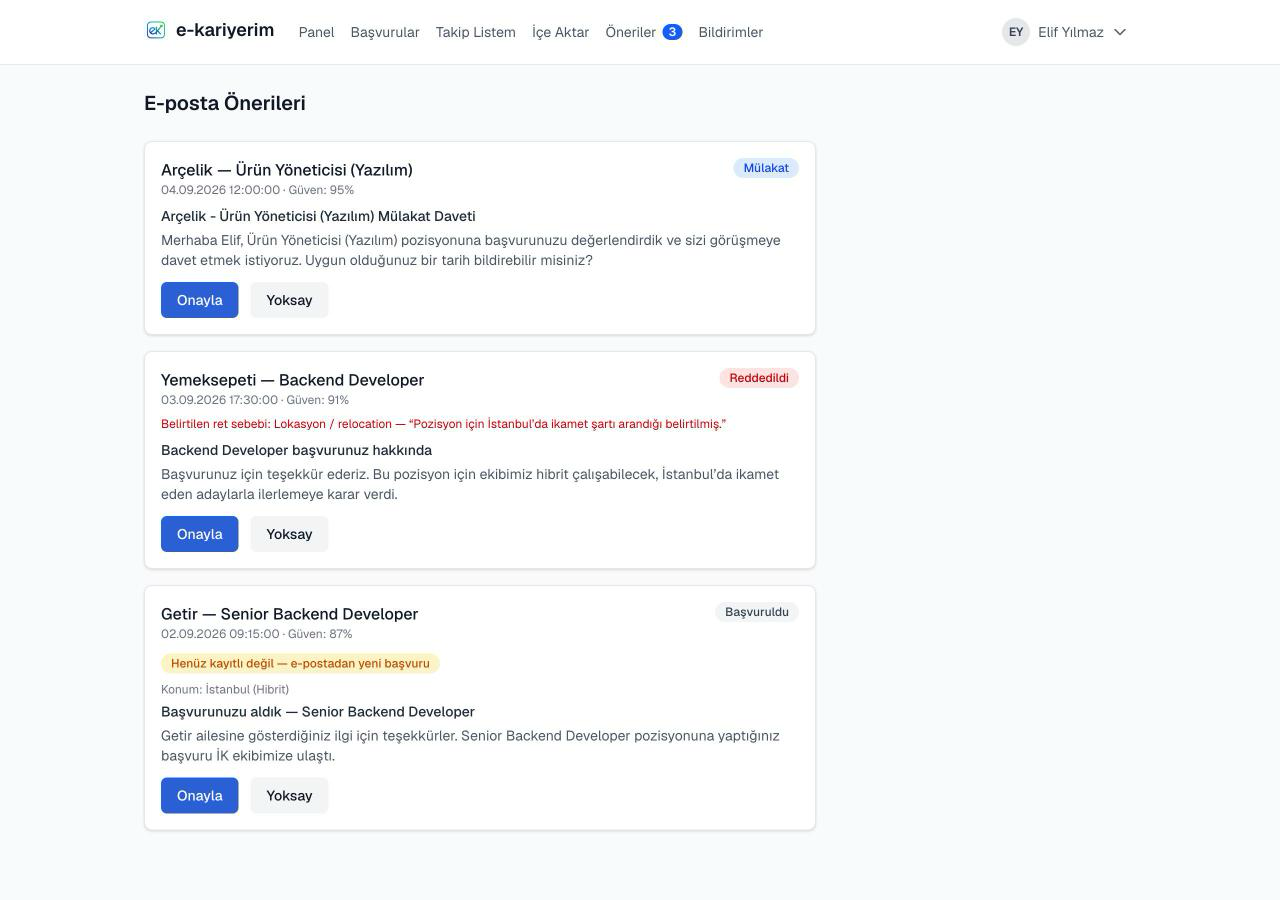
How a suggestion appears
Once a scanned email is processed, a card appears on the Suggestions page with the company, job title, received date, a confidence percentage, and a suggested status (if any). A suggestion that doesn't match a known application yet is marked with a "Not registered yet — new application from email" badge; if no clear status could be inferred, the card shows "Still pending" instead.
Confirm or dismiss a suggestion
- 1
Review the card
Check the subject line and email snippet to make sure the suggestion is about the right application.
- 2
"Confirm" to apply it, or "Dismiss" to skip it
Confirm creates a new application (if it's new) or moves an existing one to the suggested status. Dismiss closes the suggestion without changing anything.
Check the confidence percentage