
Keep the CVs you apply with in one place
My CVs is where you store the files you apply with. You can keep up to 10, download any of them, or delete them permanently. Your files are visible only to you.
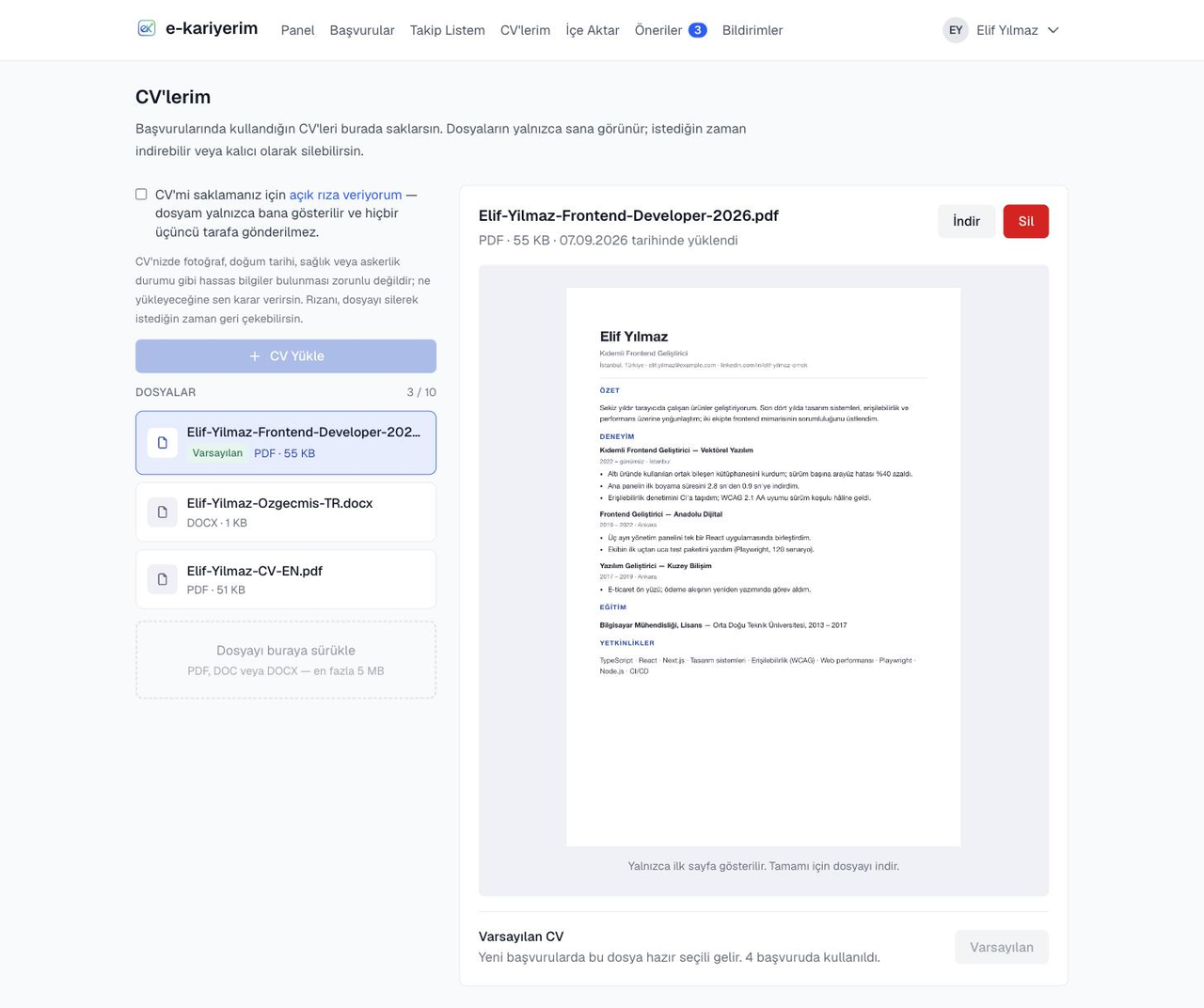
Upload a CV
- 1
Open the My CVs page
Go to My CVs in the top menu. Your files are listed on the left, and the selected file is previewed on the right.
- 2
Pick or drop a file
Tick the consent box, then press Upload CV or drag the file onto the dashed area below the list. PDF, DOC and DOCX are accepted, up to 5 MB per file.
- 3
Watch your quota
The counter next to the list heading shows how many files you have used. Once you reach 10, delete one before uploading another.
Preview
The first page of a PDF is shown in the panel on the right. That image is produced in your own browser — no copy of it is kept on the server. DOC and DOCX files cannot be previewed in a browser; download them to read them.
Default CV
Making a file your default means it arrives pre-selected when you record a new application. The first file you upload becomes the default automatically, and deleting the default passes it to your newest remaining file. You can always change the CV used field on the application form.
ATS readability
The "Measure ATS readability" button under the selected CV runs the same checks as the sign-in-free CV scan over this file: a score out of 100, the four category subtotals, the fix list and the text an applicant tracking system reads from the file. The report stays next to the CV; the list shows the score and "Open report" shows the detail. Upload the corrected version and measure again, and the old report is replaced. Uploading alone never measures anything; it runs only when you ask, and the report is deleted with the CV.
Deleting
Delete asks for a confirmation; once you confirm, the file is removed from the list and from storage permanently and cannot be recovered. Applications you recorded that CV on are not deleted — only their reference to it is cleared.
Where are your CVs stored?