
Account Settings
Settings is where you choose your notifications, decide whether your applications count toward the anonymous statistics, export your data, manage the browser extension's connection, see your Pro plan payments and open a refund request, and delete your account. Theme and language are switched from the top menu, not from Settings.
My Profile
My Profile in the avatar menu shows whose account this is and what it holds: your profile photo, your first and last name (editable), your e-mail address (cannot be changed; sign-in and notifications are tied to it), the date you joined, your plan, your latest reviews and salary entries, and your application, tracked-job and CV counts.
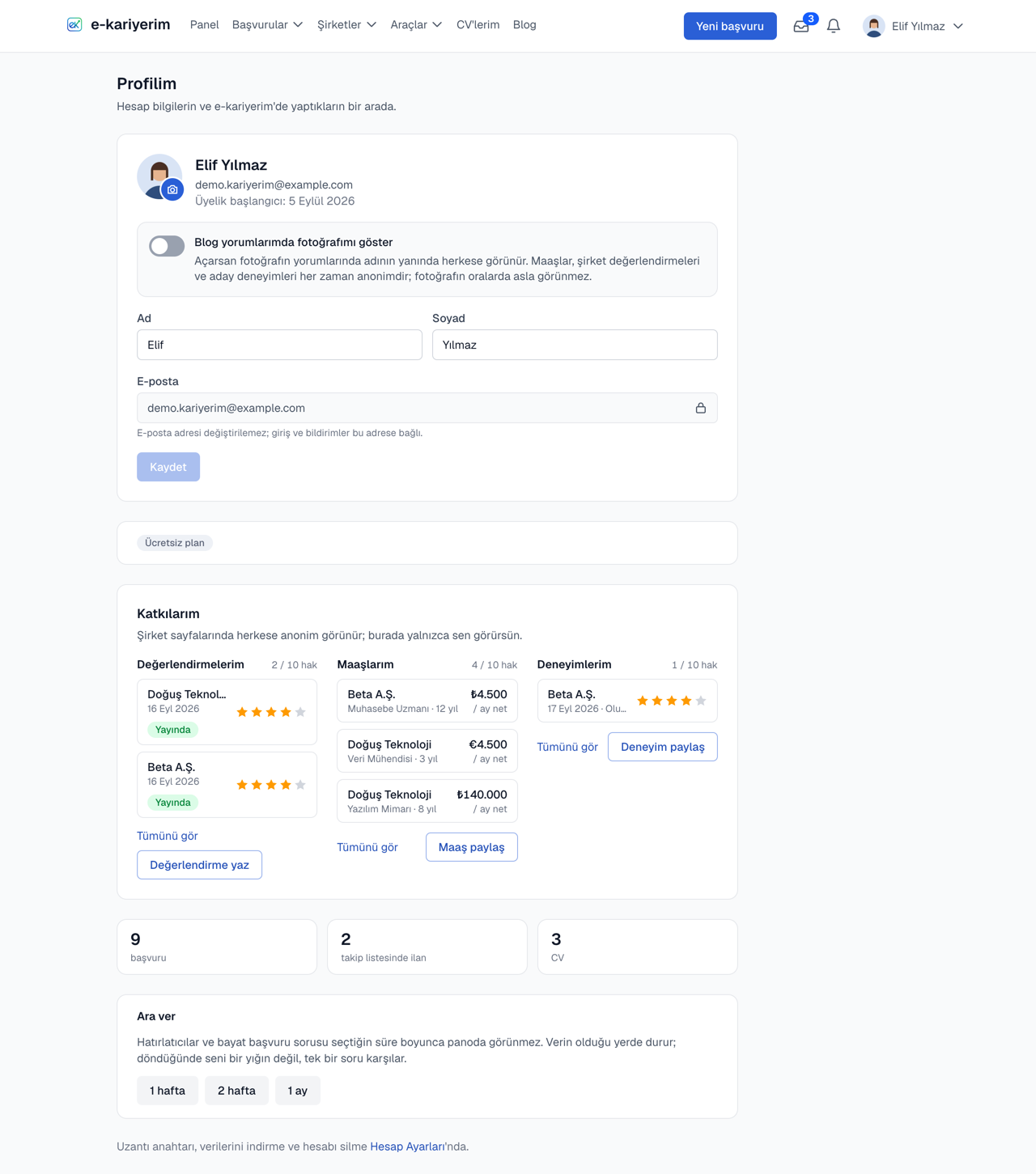
The name is optional
Where does my profile photo appear?
Notifications
The bell in the top bar tells you when a review, salary entry, candidate experience or blog comment of yours is found helpful, and when Gmail Scanning updates one of your applications; every row carries the date and the time. Click the bell for the latest ones — opening it marks them read — and find all of them on the Notifications page. In Settings, the Notifications section switches each kind on or off; the Contribution notifications switch at the top silences all four contribution kinds at once.
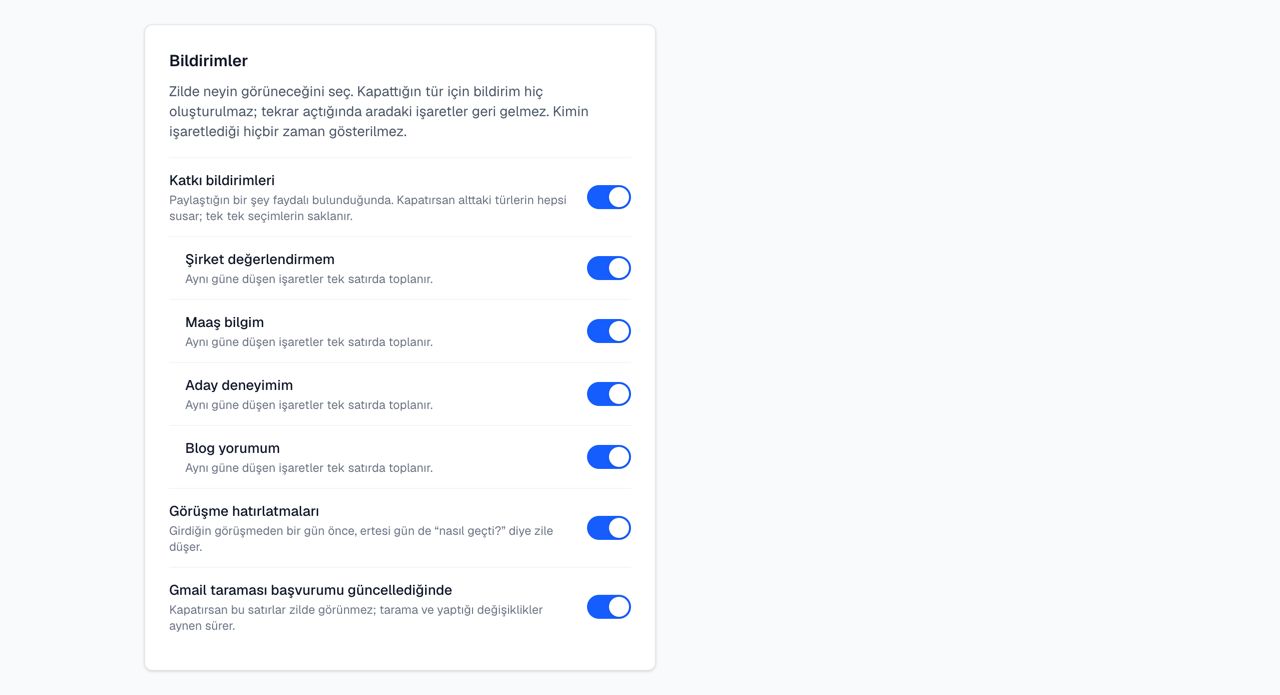
Who marked it is never said
Privacy
The single switch under Privacy decides whether your applications count toward the anonymous response statistics — the sector table and the "Response" tab on company pages. It is on by default. Only applications you add at most 7 days after the day you applied are counted; your name, notes and HR contact never enter any figure. Turn it off and your applications leave every aggregate within an hour; your own statistics stay the same.
Export My Data
Download your applications (with their status history), your imports, your reminders, your CV records, the feedback you sent, your company reviews (with your reports and helpful marks), the salary entries you shared, your candidate experiences, the helpful marks you gave and the contribution notifications you received as a single JSON file. The CV files themselves are not in it; you download those from the My CVs page.
Browser extension connection
- 1
Install the extension and click its icon
See the Chrome Extension section.
- 2
Press "Connect" and confirm on the page that opens
There is no key to copy; the extension connects the moment you confirm.
- 3
See and revoke connections here
The "Browser Extension" section lists each connection's name, when it was created and expires, and when it was last used. "Revoke" invalidates it immediately.
- 4
Entering a key by hand is still there, under "advanced"
Only needed if you point the extension at a different API address. The key is shown once, and at most 10 can be active.
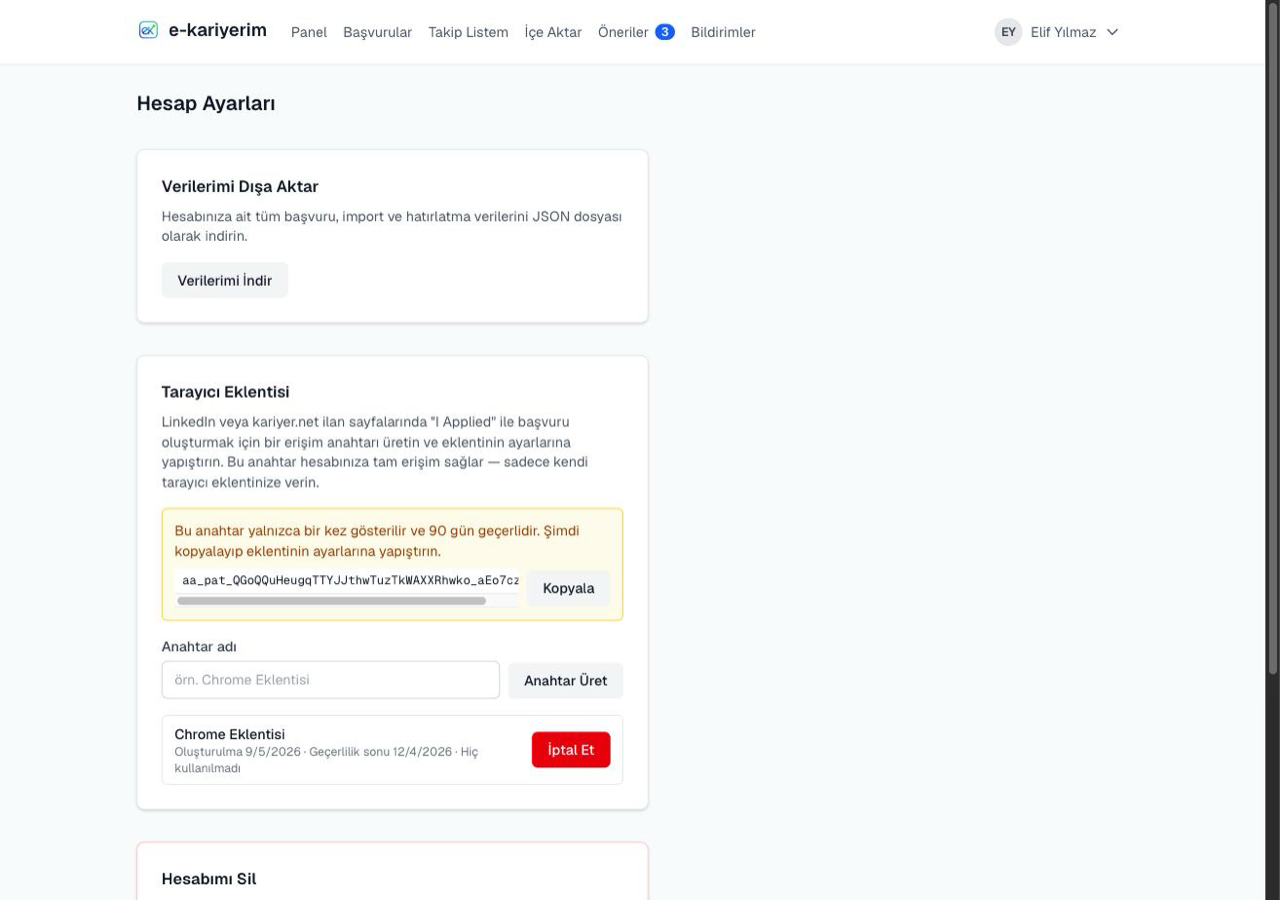
The connection only reaches the endpoints the extension uses
Plan and payments
The "Plan and payments" section lists your Pro plan payments with date, amount and status; the "Manage plan and payment history" link takes you to the Pro plan page. No card details are kept by e-kariyerim: payment is taken on PayTR's secure page, so there is no card to delete or update here.
- 1
See a payment's status
Each row shows the plan, the payment date, the amount and the status: paid, pending, failed, refund requested, refunded. A pending payment can be followed on its result page via "Open"; you also get an e-mail once the result is final.
- 2
Open a refund request
Eligible payments show a "Request a refund" button; write your reason and send it (none is needed in the first seven days). You can also e-mail support@ekariyerim.com with your order number. We reply within 3 business days at the latest and e-mail the outcome. An approved amount goes back to the card you paid with through PayTR within 3–10 business days, and your Pro plan is wound back in proportion.
- 3
Nothing to do to cancel
There is no automatic renewal; we e-mail you three days before the end. If you do not extend, nothing is charged, Pro simply ends on its end date, and your applications and CVs stay exactly as they are.
Your right to a refund
Delete My Account
Enter your password, type "DELETE" into the box, and click the button. A second warning tells you that all of your data will be deleted; once you confirm that too, your account and all of your data are permanently deleted.
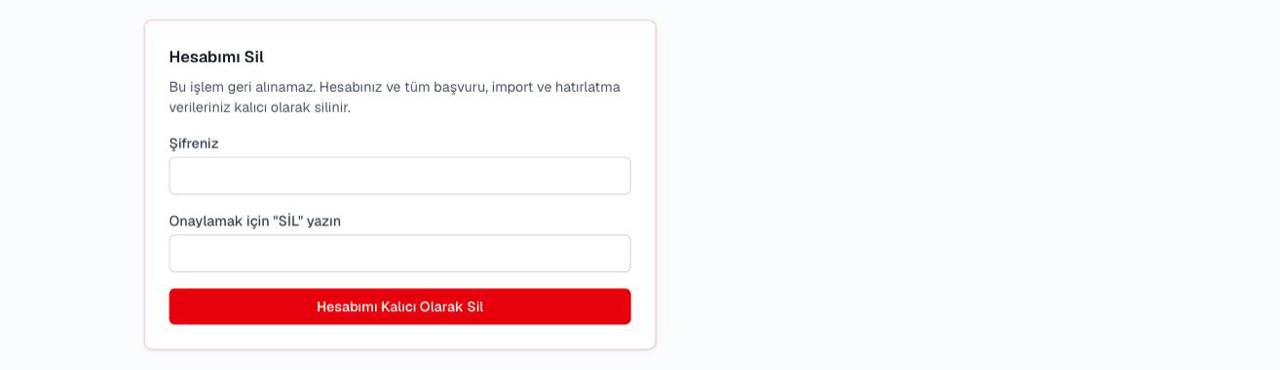
This can't be undone